Introduction
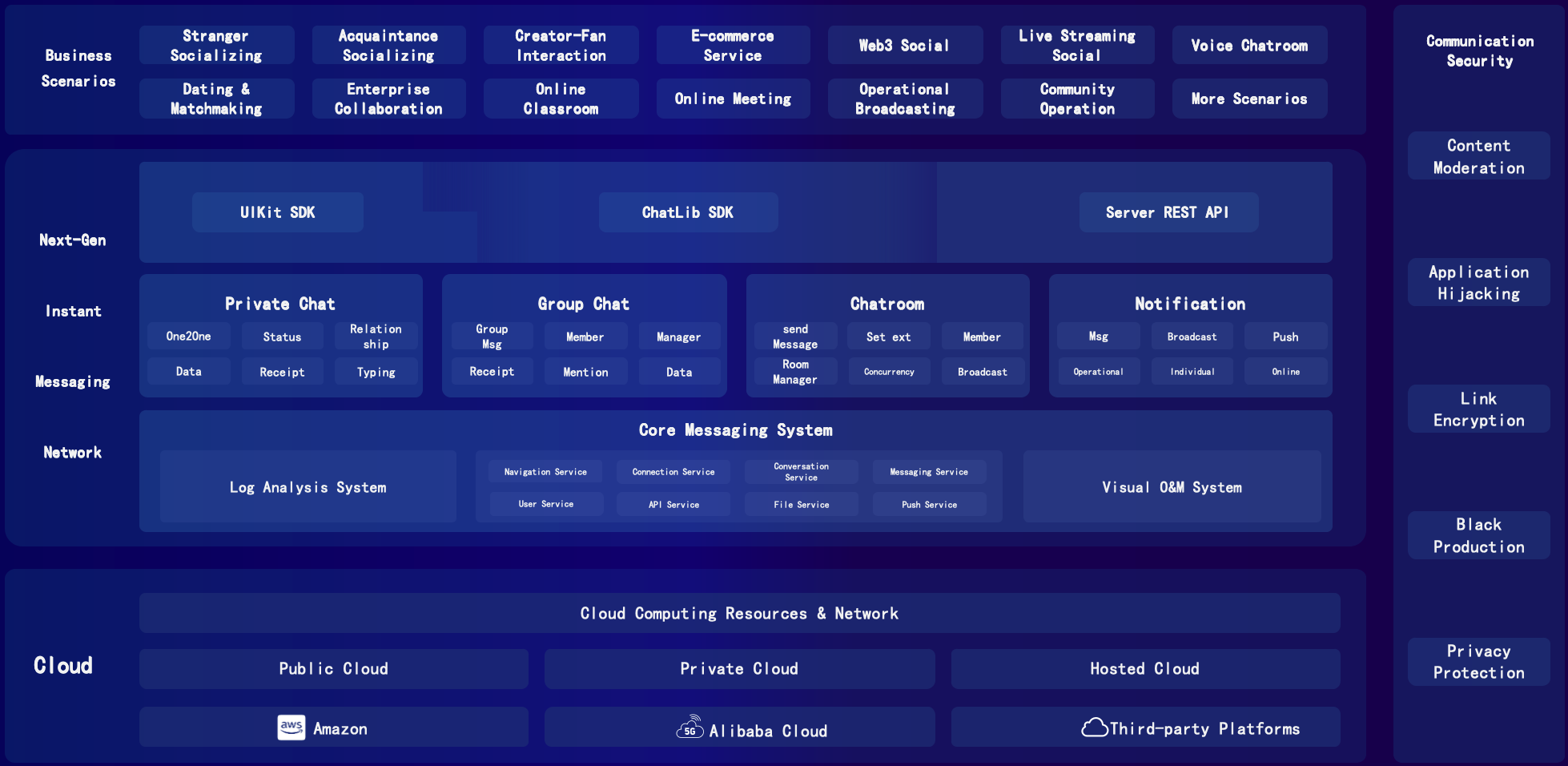
Instant messaging is an essential part of daily work and life. As demand grows for autonomous IM capabilities and secure data storage, JuggleIM provides a next-generation instant-messaging system. Developers can choose their deployment model and data-storage location. Public Cloud and Private Cloud deployments provide the same IM capabilities, allowing developers to choose Private Cloud for greater control and self-owned data storage, or a simple, reliable, ready-to-use Public Cloud service based on their business stage and requirements.
Integrating the IM service involves the IM server, developer server, and client (user). A client is an application or website integrated with the IM SDK. Their interaction is shown below:
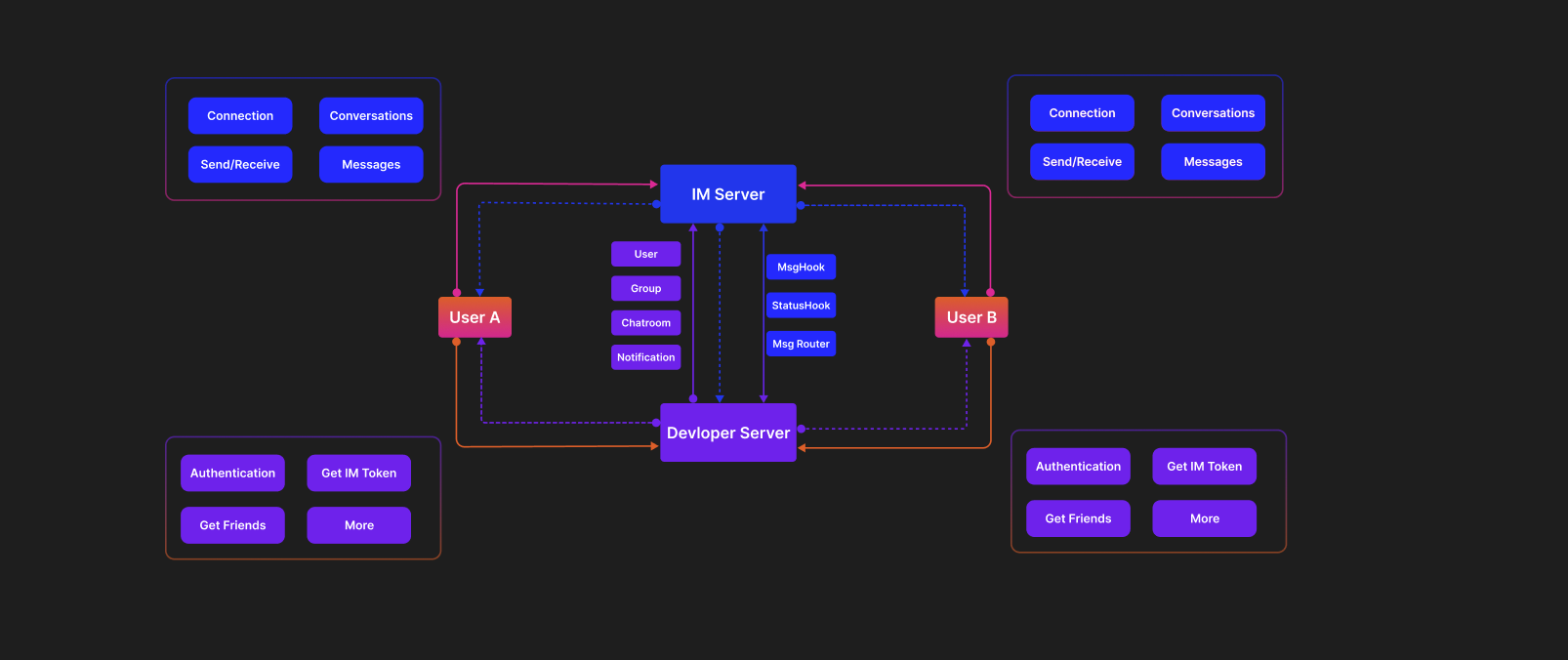
To integrate more effectively with developer services, JuggleIM provides SDKs for Android, iOS, Web, and Electron, IM server REST API calls, and WebHook callback events. It manages user and group information. When processing the latest conversation list and message list, developers do not need to fetch the related group or user information separately: the SDK assembles and returns it to the business layer for rendering.
Private Chat
Private chat is communication between two people in an IM product. It supports use cases such as direct messages between acquaintances, following and mutual-following interactions, host-fan interaction, direct messages between strangers, and buyer-seller communication. Private chat supports text, image, voice, and file messages by default. To extend message types, use custom messages. The core integration steps are as follows:
- Create a project in the Admin Console to obtain an AppKey and Secret.
- Have the developer server call the user-registration API to generate IM Tokens for users A and B.
- Start two applications or web browsers and connect them to the IM server by following the quick-start guide.
- After A and B connect successfully, have A call
sendMessagewith conversation typePRIVATEand the conversation ID set to B's user ID.
- B's message listener is triggered and receives the message sent by A.
Group Chat
Group chat is communication among more than two people in an IM product. It supports use cases such as acquaintance group chats, fan groups, car-owner groups, parent groups, company groups, department groups, and after-sales groups. Group chat supports the same default text, image, voice, and file messages as private chat. To extend message types, use custom messages. The core integration steps are as follows:
- Create a project in the Admin Console to obtain an AppKey and Secret.
- Have the developer server call the user-registration API to generate IM Tokens for users A, B, and C.
- Have the developer server generate group ID
GroupId01with A, B, and C as members.
- Have the developer server call the IM group-management REST API to create the group and synchronize the group relationship to the IM server.
- After A connects successfully, have A call
sendMessagewith conversation typeGROUPand conversation IDGroupId01.
- After B and C connect successfully, their message listeners are triggered and receive the group message sent by A.
Chatroom
Chatroom is the general term for the IM use case of sending live comments in a live room. It is mainly used for live comments, giving and receiving gifts, and signaling control. Common use cases include e-commerce streams, talent streams, live classes, entertainment streams, sports streams, news streams, and voice chat rooms. Features include likes, sending gifts, live comments, room population statistics, and shopping carts. The core integration steps are as follows:
- Create a project in the Admin Console to obtain an AppKey and Secret.
- Have the developer server call the user-registration API to generate IM Tokens for users A, B, and C.
- Have the developer server generate chatroom ID
ChatroomId01. Chatroom members do not need to be synchronized; users can join from the client.
- Have the developer server call the IM group-management REST API to create the chatroom and synchronize it to the IM server.
- After A connects successfully, have A call
joinChatroomto join roomChatroomId01.
- Have A call
sendMessagewith conversation typeCHATROOMand conversation IDChatroomId01.
- After B and C connect successfully, have them call
joinChatroomto join roomChatroomId01.
- After B and C join successfully, their message listeners are triggered and receive the message sent by A in
ChatroomId01.
System Notifications
System notifications are messages pushed one way from the server to users in an IM product. Both system notifications and private chat involve two parties, but private chat allows both parties to send messages, while system notifications can only be sent through the server API and received by end users. Text, images, voice, files, and custom messages are supported. Typical use cases include application-wide broadcasts, tag-based notifications, and official accounts. The core integration steps are as follows:
- Create a project in the Admin Console to obtain an AppKey and Secret.
- Have the developer server call the user-registration API to generate IM Tokens for users A, B, and C.
- Have the developer server use the system user
system_userto call the system-notification API and send a broadcast message.
- After B and C connect successfully, their message listeners are triggered and receive the system notification sent by
system_user.
Product Matrix