JuggleIM provides a complete Private Cloud installation tool that enables you to deploy an IM cluster quickly, even without extensive server administration experience.
This guide walks through the installation and deployment of standalone and clustered JuggleIM, with a streamlined installation process that takes only minutes.
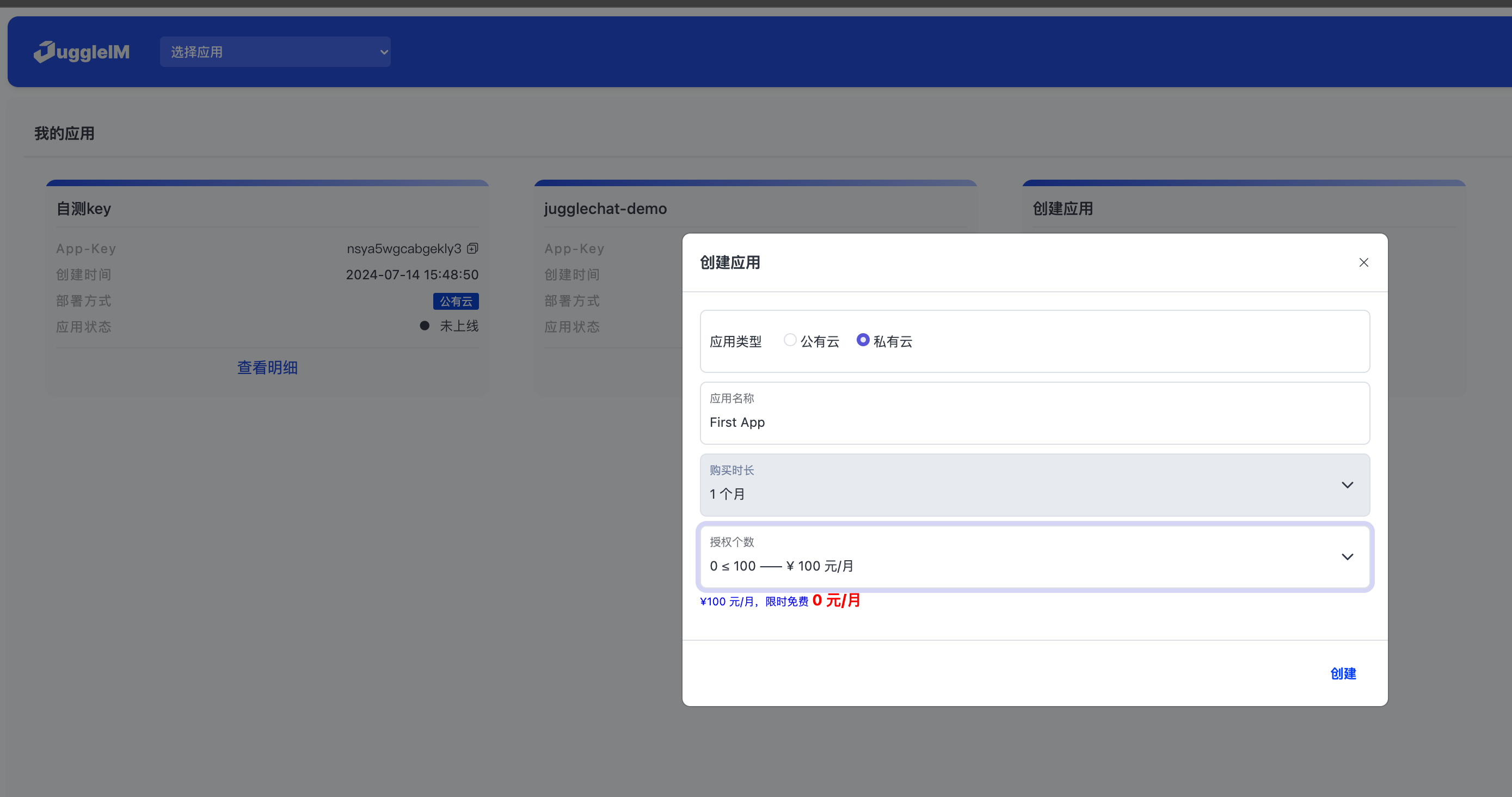
Create an Application
Sign in to the Admin Console, select Create Application, choose a suitable plan, and create a Private Cloud application.
Install and Deploy
Download the Installation Tool
wget https://downloads.juggle.im/server/linux/amd64/juggleim.ctl
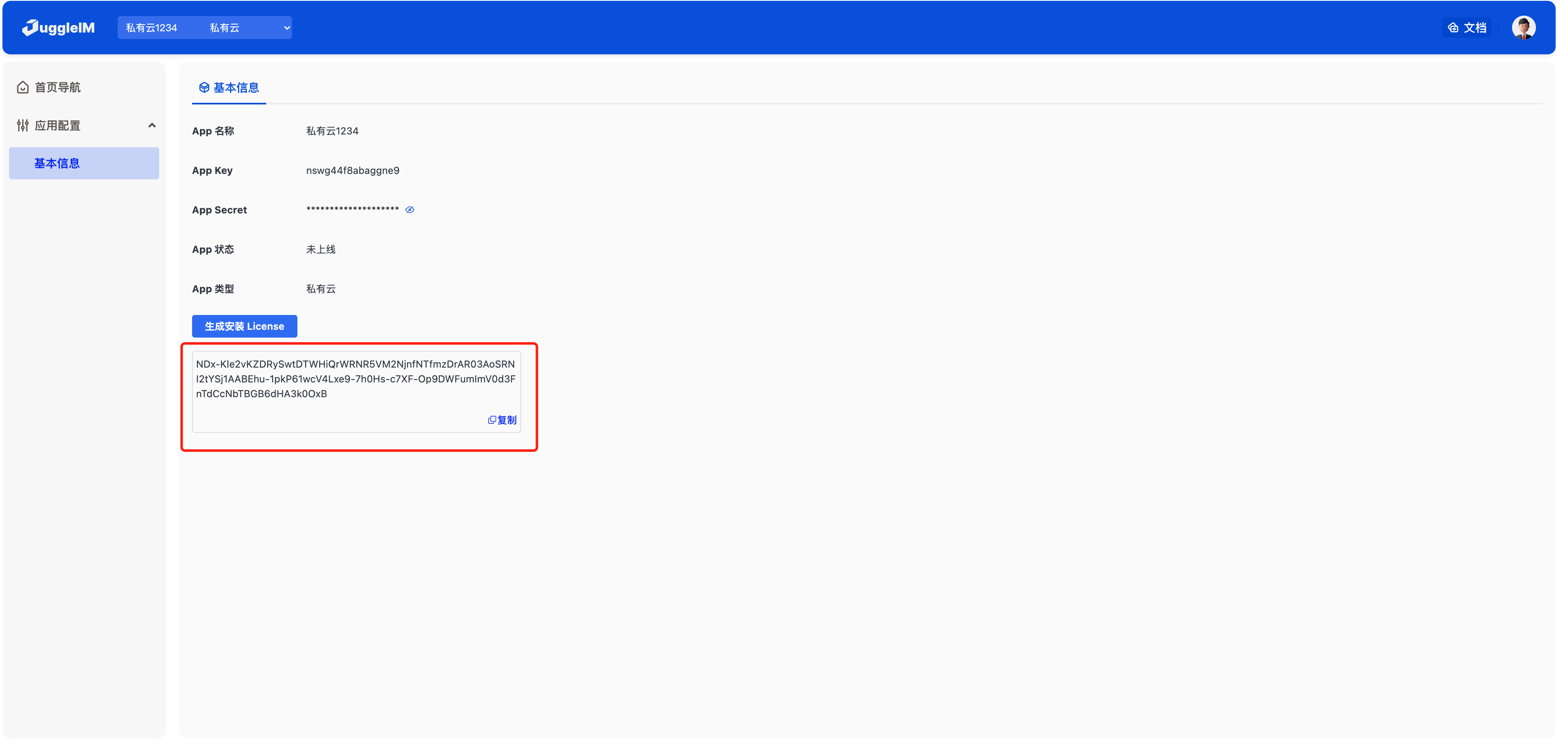
Generate an Installation License
Install the Standalone Edition
- Prepare a server with the following specifications:
Operating system: Linux; CentOS 7/8 or Ubuntu 18.04 is recommended.
Hardware: 4 CPU cores, 8 GB memory, and 200 GB disk space.
- Sign in to the server over SSH, then run the following command to download the installation script.
wget https://downloads.juggle.im/server/linux/amd64/juggleim.ctl && sudo chmod u+x juggleim.ctl

- Run the following command to install the service.
sudo ./juggleim.ctl install --license {INSTALL_LICENSE}
Installation in progress:
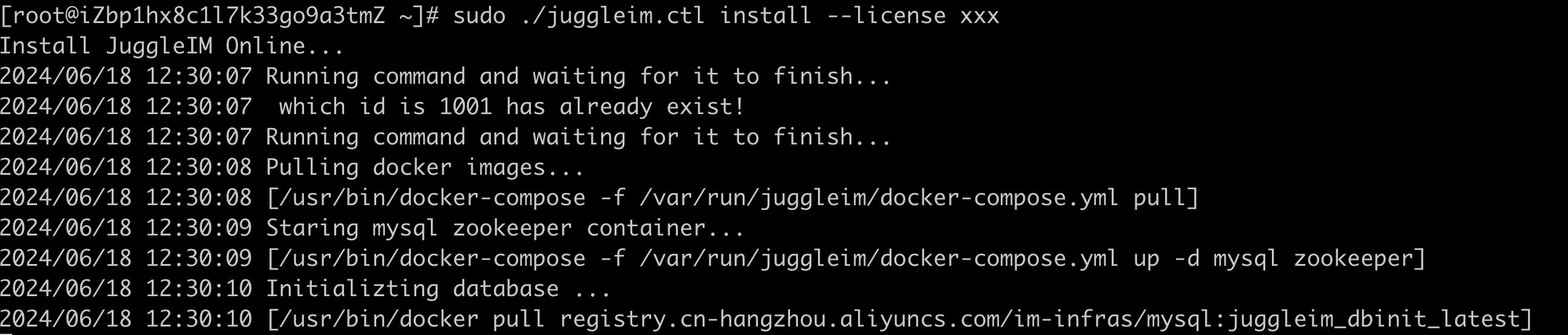
Installation complete:
- Sign in to the Private Cloud Admin Console.
Install the Cluster Edition
Prepare at least three servers. Their specifications are the same as for the standalone edition.
Sign in to one server and configure its SSH access to the other hosts. Assume the following three servers:
| Host name | IP | |
|---|---|---|
| server1 | 172.16.111.152 | |
| server2 | 172.16.111.153 | |
| server3 | 172.16.111.154 |
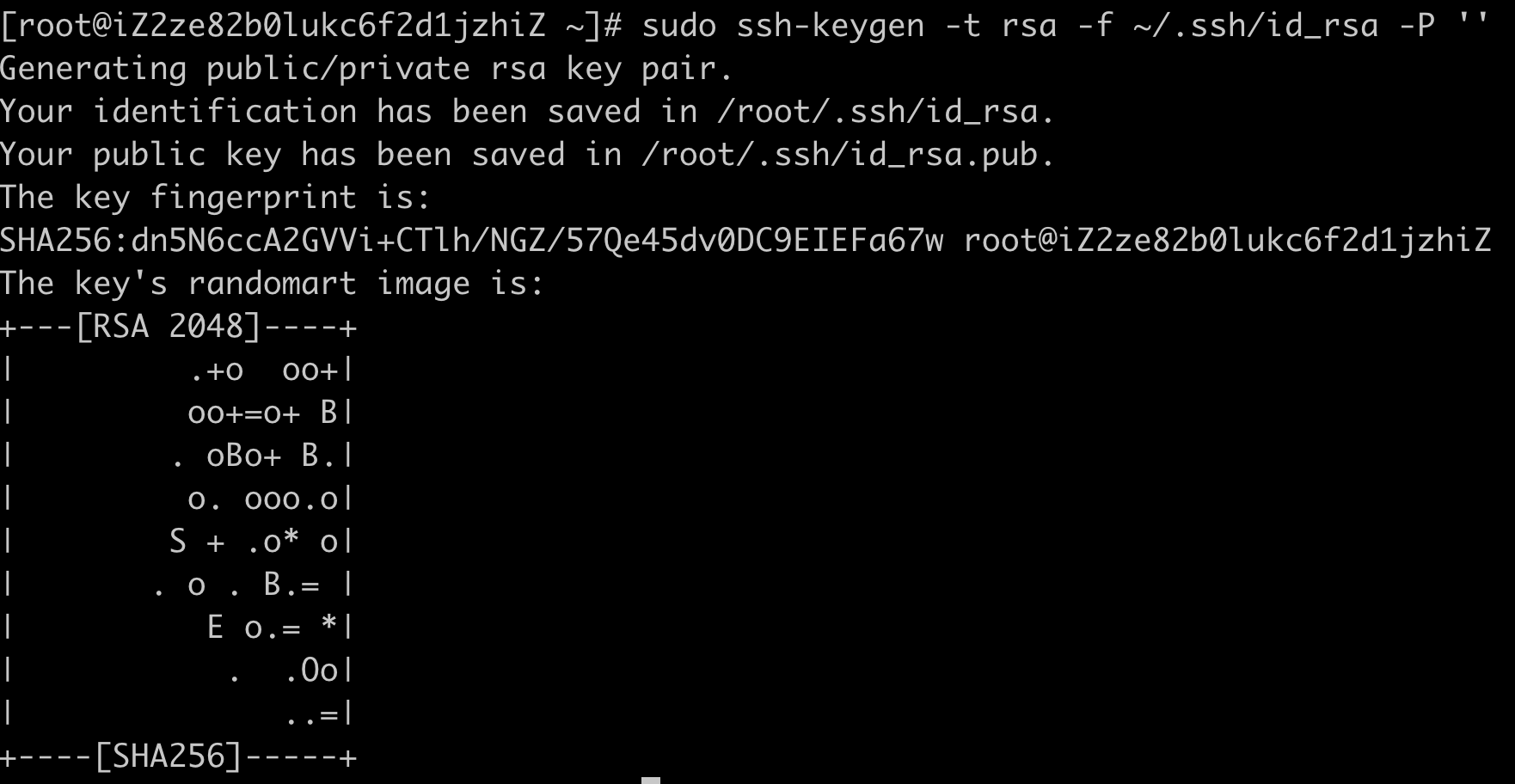
1) Sign in to server1 and run the following command to generate an SSH key pair:
sudo ssh-keygen -t rsa -f ~/.ssh/id_rsa -P ''
For example:
2) Run the following command, then run its output on each of the three servers:
sudo echo "sudo echo \"`cat ~/.ssh/id_rsa.pub`\" >> ~/.ssh/authorized_keys"
Example output:

Run on server1:

Run on server2:

Run on server3:

- Sign in to
server1to start installation.
Download the installation tool:
wget https://downloads.juggle.im/server/linux/amd64/juggleim.ctl && sudo chmod u+x juggleim.ctl

Start installation:
sudo ./juggleim.ctl install --hosts "172.16.111.152,172.16.111.153,172.16.111.154" -license {INSTALL_LICENSE}
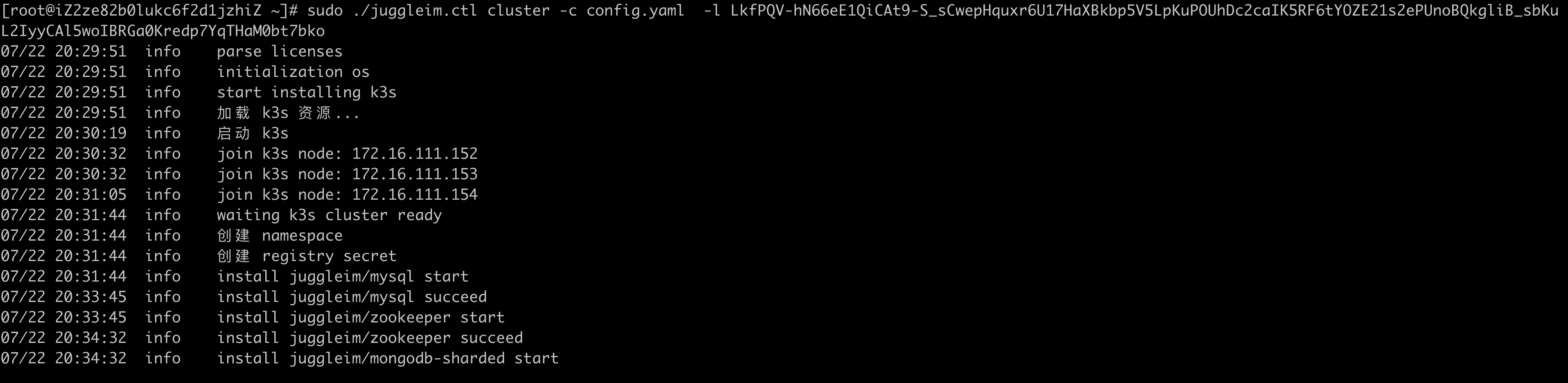
Installation complete:
- Default IM service ports
| Port | Protocol | Description |
|---|---|---|
| 9003 | websocket | Used by client SDKs to establish persistent connections to the IM service. Pass this address when initializing the SDK. |
| 8082 | http | Server API listener, called by the business server to obtain tokens, create groups, and perform other administrative operations. |
| 8090 | http | IM Admin Console address. The default username/password is admin/123456. |